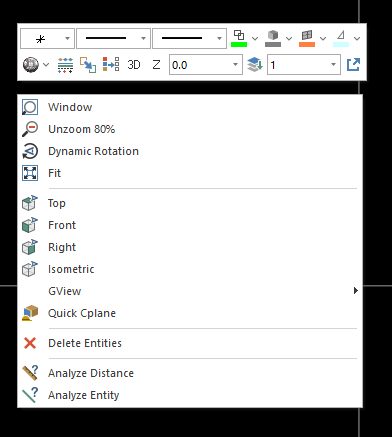
An example of the Mastercam Right Click Menu options.
Zoom Window
Magnifies a portion of the graphics window. When you use this function, Mastercam prompts you to draw a rectangular window around the portion of the graphics area that you want to magnify.
Unzoom 80%
Reduces the size of the displayed geometry to 80% of its current size.
Dynamic Rotation
Lets you dynamically rotate entities in the graphics window around a selected point or position. When you choose this function from the menu or toolbar, you first select an Endpoint, Point, or a position in space, and then move the mouse to rotate entities around the selected point. Mouse click when the drawing is in the desired position.
Fit
Fit screen maximizes your view of visible geometry in the graphics window.
Top
Sets the graphics view to the top view.
Front
Sets the graphics view to the front view.
Right
Sets the graphics view to the right view.
Isometric
Sets the graphics view to an isometric view.
Gview
Allows you to set the graphics view from Back, Left, Bottom, Isometric Reverse or Trimetric.
Delete Entities
Erases the selected entities.
Analyze Distances
Analyzes the distance between two points.
Analyze Entity
Analyzes and allows you to edit selected entity lengths, angles, positions and attributes.